Save from the web. Keep it in Framebird.
Save images, page previews, and screenshots to your Galleries as you browse with the Framebird extension for Chrome and Firefox.
What saving looks like
A working replica of the extension on a sample page. Try the notice, menus, and picker. Nothing is saved here.

Saved to Spring Lookbook
Follow every upload
A compact notice in the corner of the page shows the file and its progress, then confirms which Gallery it landed in. It closes on its own.

Saved to Spring Lookbook
Change the Gallery after saving
Saved to the wrong place? Choose another Gallery from the notice without leaving the page. Search finds any Gallery by name.
Pick from the whole page
Open the extension to list the readable images and videos on the current page. Select several and save them in one go.

Mia Torres Start from the toolbar
The popup keeps your destination Gallery in view and offers page previews and screenshots alongside image saves.


Choose what you want to keep
Save images and videos
Right-click Media or select readable images and videos from the current page. Direct saves upload the file to Framebird.
Keep a page with a preview
Save a page URL with a preview. A page preview is a visual bookmark, not an offline archive of the whole website.
Capture the detail
Capture a selected area, the visible area, or a full page. Screenshots preserve the rendered view, not the original source file.
Get started in three steps
Install and sign in
Add Save to Framebird from the Chrome Web Store or Firefox Add-ons. Open the extension, sign in to Framebird, then return to the page you want to save.
Choose your Gallery
Open Destination and choose a Gallery or Sub-Gallery. This destination applies to popup and right-click saves.
Save, then revisit
Right-click an image to save it, or open the extension for more options. Open the destination Gallery in Framebird to find your saved reference.
Choose your browser
Firefox installs Save to Framebird from Firefox Add-ons. Chrome and Chromium browsers such as Edge, Brave, Arc, Dia, Vivaldi, and Opera install it from the Chrome Web Store. There is no Safari version.
Before you install
Keep building your reference library
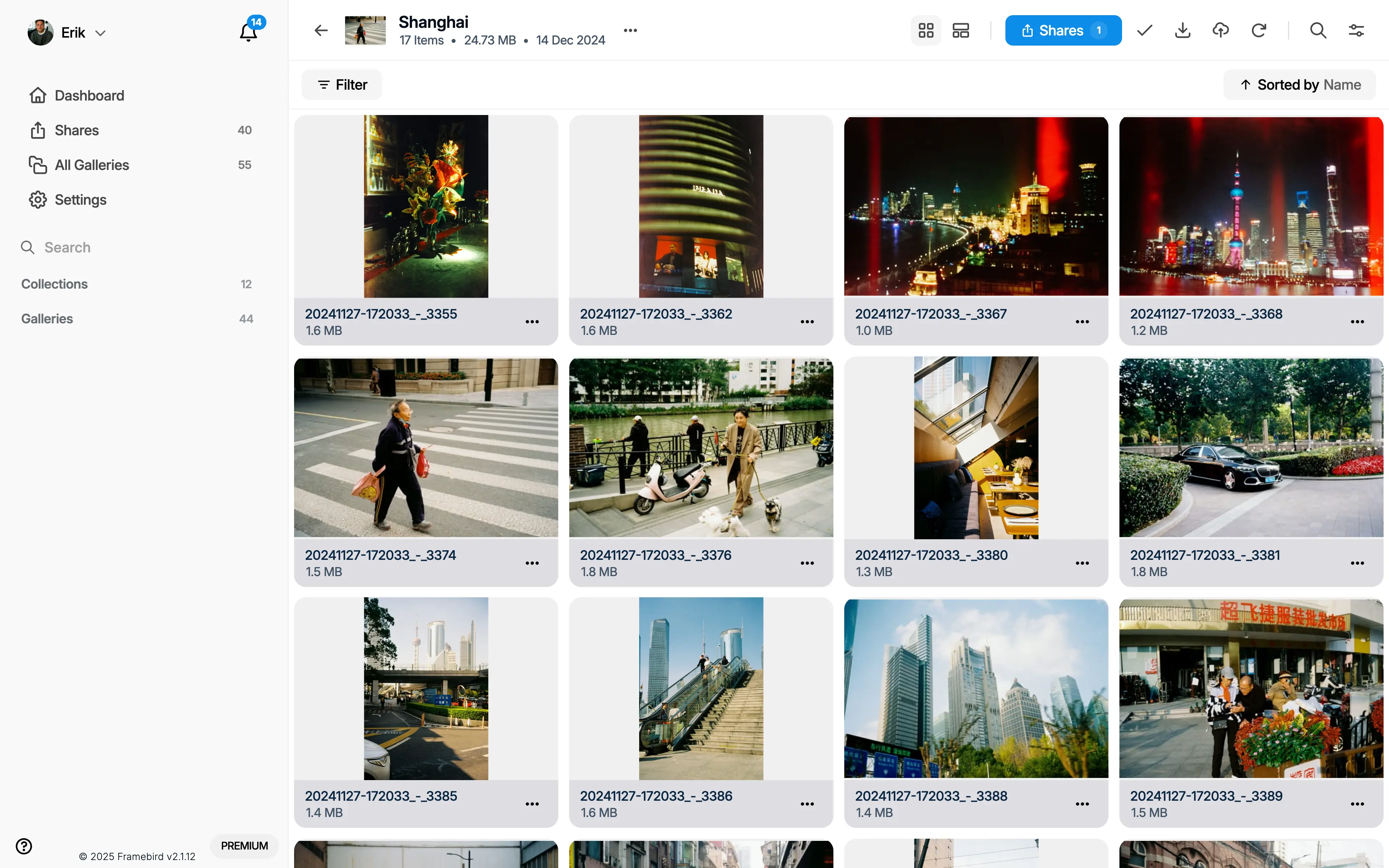
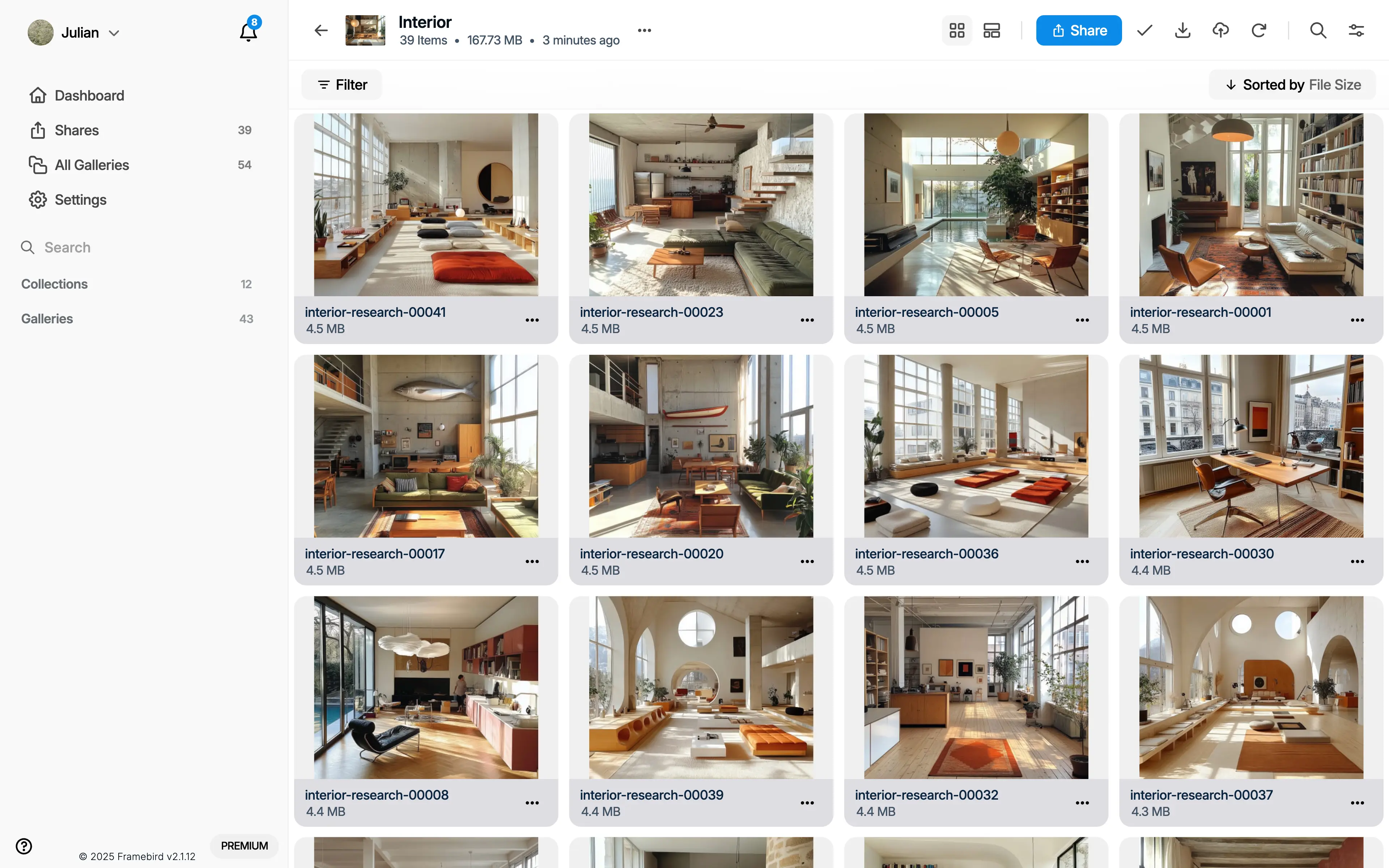
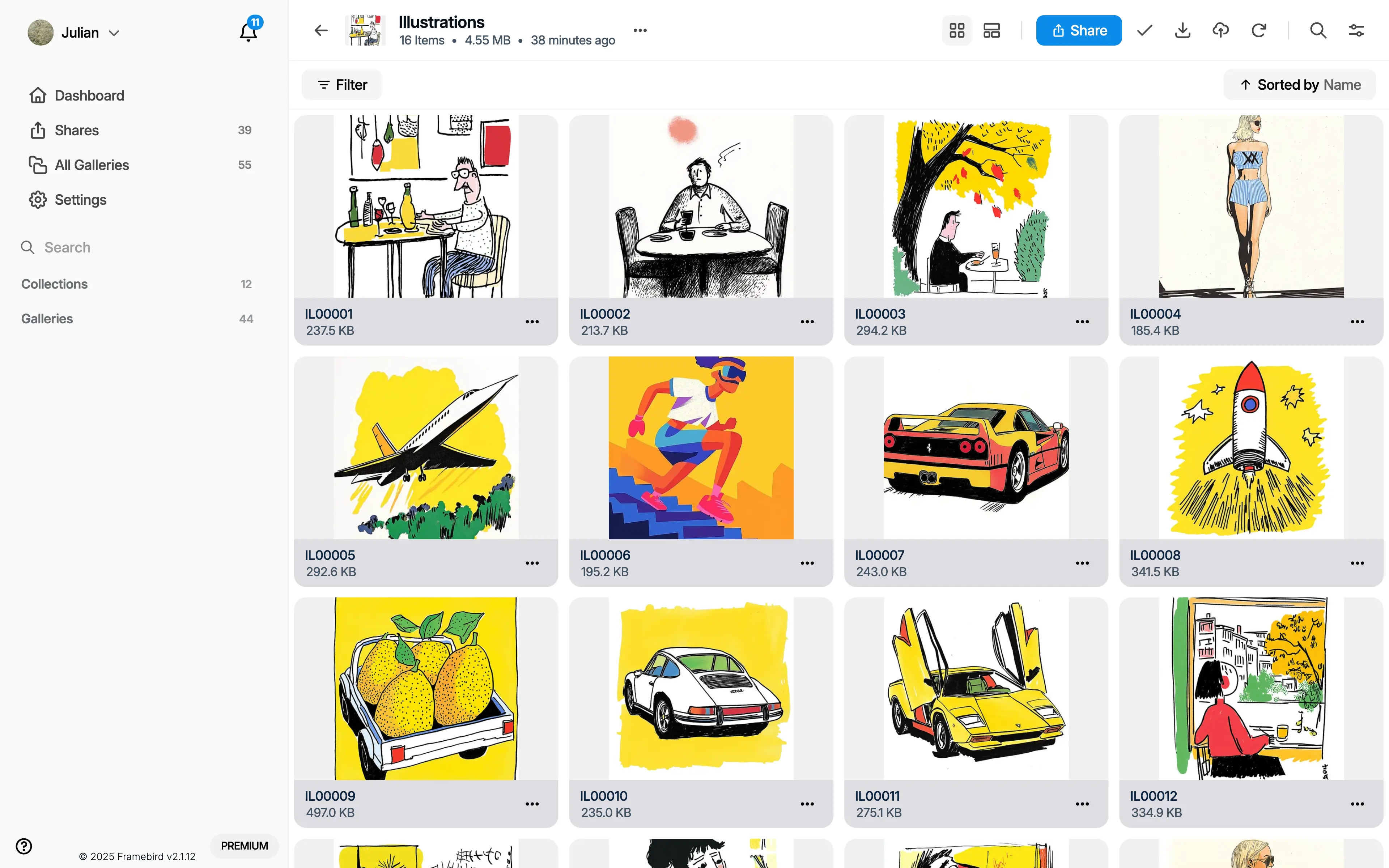
Save your next reference
Install the extension once. Everything you save goes to the Gallery you choose.
Available for Chrome, Firefox, Edge, Brave, and more. A Framebird account is required.