Share photos, videos and files with a QR code
Give everyone an easy way to find the photos and videos from your wedding, party or event. Create a Framebird Share and print its QR code on thank-you cards, letters or invitations.
Turn on guest uploads, and friends, family and attendees can add their own photos, videos and files, too.
No credit card required. Guests don't need a Framebird account to view your Share.
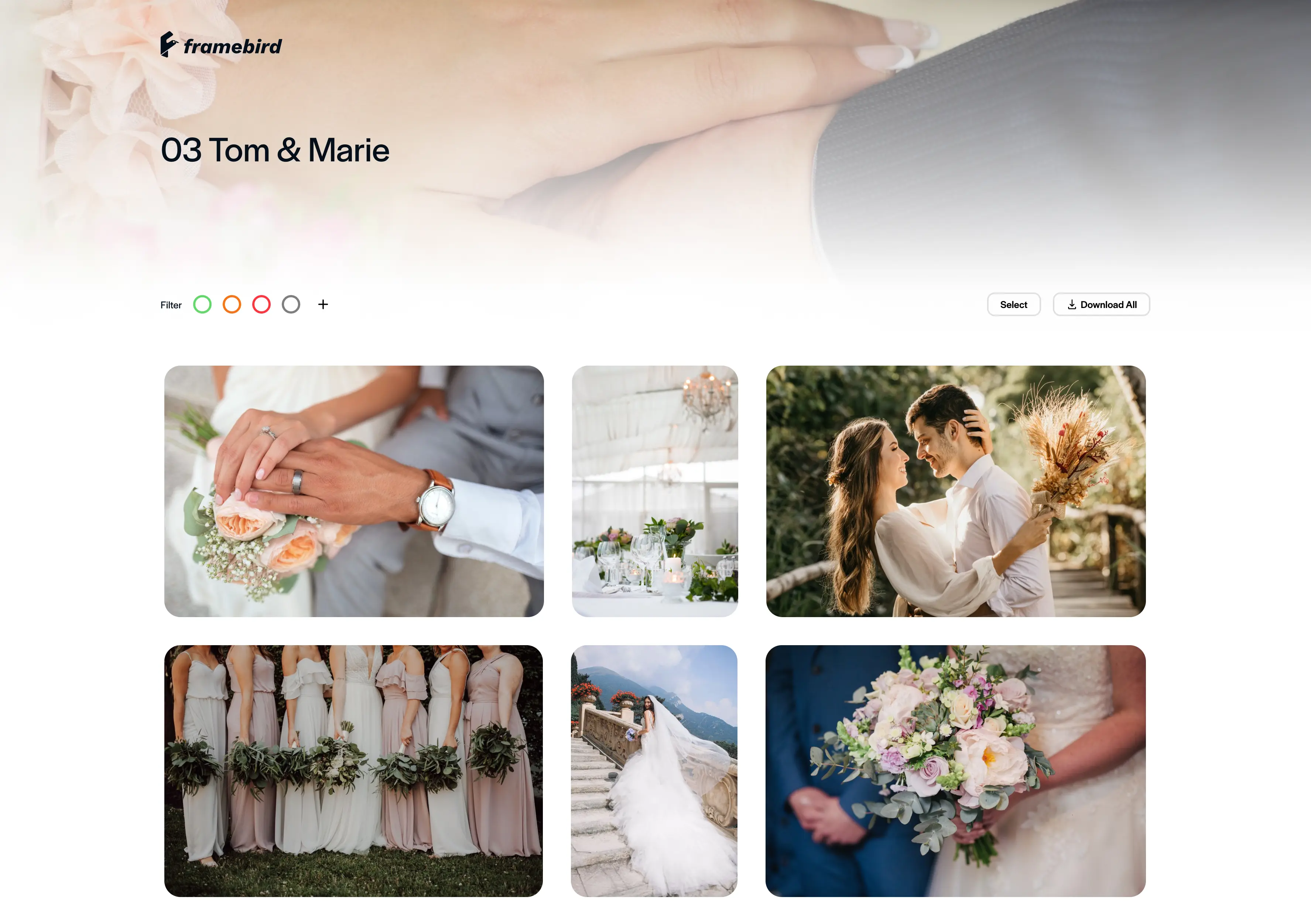
Tom & Marie
Thank you for celebrating with us
Scan to see our wedding photos and film.
How to share photos and videos with a QR code
From a folder of files to a code your guests can scan, in four steps.
Create your account and upload your files
Sign up for free and add the photos, videos and other files you want to share to a Gallery.
Create a Share
Choose the Galleries to include, then add a name, a cover and an optional message.
Turn on guest uploads (optional)
With Pro, let guests add their own photos and videos to the Galleries you choose.
Download the QR code and print it
Open the Share dialog, save the QR code as a PNG image and add it to your cards, letters or event materials.
Let guests upload their own photos, videos and files
Your guests have photos and videos you haven't seen. Let them add what they captured to your Framebird Share.
When guest uploads are on, guests scan your QR code, open the Share and upload from their phone or computer. They enter their name and email before their first upload.
Uploaded files appear in the Gallery the guest chose, so everyone who can open the Share sees them too.
You choose which Galleries accept uploads and set a total upload limit for the Share. You can also get an email when guests add files. Guest uploads are included in Pro and Premium.
See our photos. Share yours, too.
Scan the code to open our gallery and add the photos and videos you took.
Share wedding photos, party videos and event files
Share wedding photos with your guests
The photographer's gallery is ready and the wedding film has arrived. Put a QR code inside your thank-you cards so guests can open the ceremony, the reception and the film from one place, then add the pictures and clips they took on the day.
Send everyone the photos after a party
Birthdays, anniversaries, graduations and family gatherings. Print the code on a postcard that says the photos are ready, and invite everyone to add theirs. A line like "Got a photo we missed? Add it here" makes the request clear.
Share photos and files after an event
For conferences, workshops and company events, put the event photography, session recordings and presentation PDFs in one Share. Attendees can add their own photos from the day.
Print your QR code on cards, letters and invitations
Put the code somewhere people keep, and tell them what they'll find. Adapt this wording to your event.
- Wedding thank-you card
- Example wording: Thank you for celebrating with us. Scan to see our wedding photos and film.
- Postcard after a party
- Example wording: The party photos are ready. Scan to find your favorites, and add yours.
- Event follow-up letter
- Example wording: Scan for the event photos, session recordings and presentation files.
- Invitation or table card
- Example wording: Keep this card. After the celebration, scan it for the photos and share the ones you took.
Before you print
- Scan the code on the final printed design, at the size you plan to print.
- The code always opens the same Share. Files you add to its Galleries later appear there too, so you can print invitations before the event.
- The code stops working if you delete the Share or its expiry date passes.
- Framebird gives you the QR code as a PNG image. You design and print the cards yourself.
Photos, videos and other files in one Share
Keep the event photos, the video and the files people need together, instead of sending a separate link for each.
Photos
Wedding portraits, group photos, party pictures and event photography, including common RAW formats.
Videos
Wedding films, speeches, birthday messages and session recordings that guests can watch in the browser.
Other files
PDFs, presentations, audio recordings and event resources. Framebird accepts any file type, and files without a browser preview can still be downloaded.
Choose how guests access and use your Share
Decide who can open, download and add files before you print the code and send it to everyone.
A QR code is a printed link. Anyone who has the card can open the Share unless you add a password.
Viewing
All plans
Anyone with the QR code or link can open the Share. Guests don't need a Framebird account.
Downloads
All plans
Turn downloads on or off for each Share and choose the maximum resolution, up to the original files.
Password protection
Pro and Premium
Ask for a password before anyone can open the Share. Print it on the card or send it separately.
Guest uploads
Pro and Premium
Let guests add files to the Galleries you choose, within the total limit you set.
Expiry date
Premium
Close the Share automatically on a date you choose.
Questions about QR code photo sharing
Bring everyone's event photos together
Create a Framebird Share for your wedding, party or event. Add its QR code to your next card or letter so everyone knows where to find the photos, and where to add theirs.