The best image format depends on the job: use JPEG for client downloads, WebP or AVIF for website images, and RAW originals plus editing files for your archive. HEIC suits supported Apple workflows; JPEG XL is an efficient option when your tools support it. Use PNG when you need transparency.
A practical guide to JPEG, PNG, HEIC, WebP, AVIF and JPEG XL for client galleries, portfolio websites and photo archives.
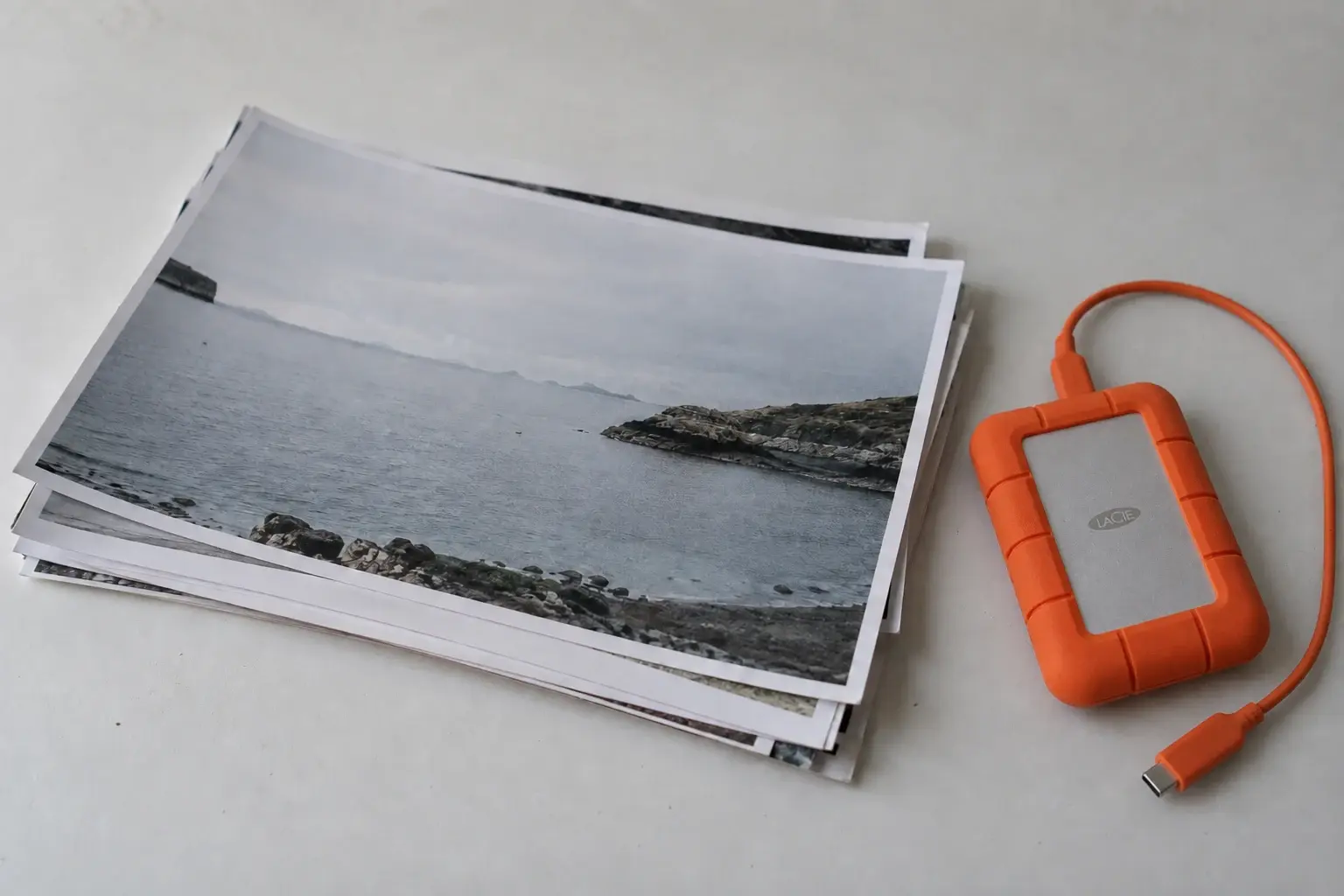
Hero image: AI-generated editorial illustration of photographic prints and an orange external drive.
After editing a shoot, you still have three decisions to make: what clients should download, what visitors should see on your website, and what you should keep for the next edit. The smallest file will not always be the best choice for all three.
This guide explains where each image format fits, with recommendations for photographers delivering weddings, portraits, commercial shoots and personal work. Start with the quick comparison, then use the format sections for compatibility and quality trade-offs.
Format and compatibility research checked on September 18, 2026.
Which image format should you use? A quick comparison
| Your goal | Recommended format | Why |
|---|---|---|
| Deliver finished photos to clients | High-quality JPEG, usually sRGB | The safest default for broad device, app and print-service compatibility |
| Keep photos for future editing | Original RAW plus edit settings; retain layered working files | Preserves the source and editing workflow |
| Keep an accessible copy of finished work | High-quality JPEG alongside the originals | Easy to revisit and share without specialist software |
| Store finished photos in a modern Apple workflow | HEIC/HEIF | Efficient storage when the entire workflow supports it |
| Keep high-quality or lossless rendered images in compatible tools | JPEG XL | Modern compression, high bit depth and HDR capabilities |
| Publish photos on a portfolio website | AVIF or WebP, with suitable fallbacks | Smaller browser-facing copies without changing the archive |
| Deliver transparent artwork | PNG, or a supported modern format | Ordinary JPEG has no alpha transparency |
A source file preserves what you captured. An editing master preserves work you may revise. A delivery file makes the finished image easy to view. Keeping these roles separate is more useful than choosing a single winner.
JPEG: the best default for client photo delivery
JPEG’s greatest advantage is familiarity. Decades of adoption mean a standard JPEG opens on practically every mainstream phone, computer, browser and photo app. That makes it our default recommendation when you do not know what a client uses. Mozilla’s image-format guide documents its broad browser support.
For everyday delivery, export a high-quality JPEG in sRGB, at the dimensions the client needs. For a print lab or publication, follow its specifications instead. Keep the colour profile embedded and check the exported image, especially skin tones, fine foliage and smooth skies.
JPEG uses lossy compression in ordinary photography workflows. Repeated editing and re-exporting can introduce additional damage. Make new exports from the original or editing master whenever possible.
For a smaller web-ready copy of an existing export, try Framebird’s JPEG compressor. Check the result at its intended display size and keep your original export.
What should you export for a client gallery?
For a typical portrait or wedding delivery, use this starting checklist:
- Format: high-quality JPEG for finished photographs.
- Colour: sRGB for general viewing, unless the recipient specifies otherwise.
- Dimensions: full resolution when the agreement includes full-resolution delivery; a separate, clearly labelled smaller set when the client also needs web-ready files.
- Quality: inspect the exported result. There is no single quality-slider number that works identically in every app.
- Organisation: separate proofs from approved finals and use filenames that make selections easy to identify.
For a commercial handoff, ask whether the designer or retoucher needs a TIFF, layered file or another agreed format. Match the deliverable to the next person’s task.
The file format handles compatibility; a client gallery handles presentation, selections and feedback. See examples of Framebird’s shared galleries to explore what that delivery experience can look like.
Is JPEG the best format for archiving photos?
JPEG is a strong choice for an accessible archive of finished photographs, but it should not replace your RAW originals.
For important work, our recommendation is to keep:
- The original camera files, including RAW, HEIC or JPEG as captured.
- The edit catalogue or sidecar files needed to reproduce your adjustments.
- Layered working files where retouching depends on layers.
- A high-quality JPEG of the final result for easy viewing.
- A lossless rendered master, such as a 16-bit TIFF, when your workflow needs one.
A JPEG records the finished appearance; it does not retain all the capture information or editable decisions. Likewise, a rendered TIFF or JXL does not automatically replace a RAW file. Keep independent backups and occasionally test that you can open and restore them.
PNG and TIFF: when JPEG is not the right deliverable
Choose PNG for transparent graphics and images that need lossless reproduction. A logo, watermark asset or cut-out product image may need transparency that ordinary JPEG cannot retain. PNG is usually less efficient for full photographic galleries, so use it for a specific requirement. MDN
Choose TIFF when the editing or print workflow calls for a rendered master. A 16-bit TIFF saved without lossy compression can be useful for further retouching. Follow the recipient’s specifications and keep your layered working file when the edit depends on layers. TIFF is not a replacement for the original RAW or a default website-delivery format.
HEIC vs JPEG: when high-efficiency photos make sense
HEIF means High Efficiency Image File Format. It is a container format. HEIC commonly describes HEIF images compressed with HEVC, the High Efficiency Video Coding standard also known as H.265. HEVC is not an Apple-only invention.
Apple introduced HEIF support with iOS 11 and macOS High Sierra. On compatible iPhones, the Camera setting High Efficiency uses HEIF for photos; Most Compatible uses JPEG. Apple documents the storage savings and conversion behaviour in its guide to HEIF and HEVC media.
Should Apple users export their final photos as HEIC?
Yes, HEIC is a reasonable format for finished photos if you use modern Apple devices and all the apps in your workflow support it. You do not need to create a JPEG duplicate of every personal photo just because JPEG is older.
Check your editing app’s export options, your library, backup software and any service you send images to. Apple device support does not guarantee support in every third-party app. Keep the originals, and create a JPEG when sending files to someone whose setup you do not know. Framebird’s HEIC-to-JPEG converter can create that sharing copy.
Converting an existing JPEG to a lossy HEIC does not restore detail. Export from the RAW edit or a high-quality master when possible. For an existing JPEG library, storage savings alone may not justify another lossy conversion.
Which cameras already shoot HEIF?
High-efficiency photography extends well beyond the iPhone:
- Fujifilm X-T5: its specifications list 10-bit HEIF alongside JPEG and RAW. Fujifilm already lets photographers save high-efficiency images directly in-camera. Fujifilm X-T5 specifications.
- Fujifilm X-H2: Fujifilm also lists HEIF capture for this camera. Fujifilm X-H2 product page.
- Canon EOS R6 Mark II: enabling HDR PQ allows HEIF or RAW capture. This is an HDR workflow, so display and software support matter. Canon’s HDR shooting manual.
For an approachable external explanation, Fujifilm’s When to Use JPEG and When to Use RAW includes a JPEG-versus-HEIF section and explains where to find the camera setting.
Do not assume a camera’s HEIF file behaves identically to an iPhone HEIC. Colour encoding, HDR settings and application support can differ. Try sample files through your complete workflow before changing your capture settings for an important job.

AI-generated illustration, not a camera sample or compression benchmark.
JPEG XL vs JPEG: efficient exports in compatible workflows
JPEG XL, usually saved as .jxl, is a newer standard from the Joint Photographic Experts Group. It supports lossy and lossless compression, high bit depth, wide colour gamut, HDR, transparency and progressive decoding. It is designed to address needs that ordinary JPEG handles less well. JPEG
JPEG XL is a valid choice for finished images and lossless rendered masters when your tools support it. It can deliver better compression than legacy JPEG, but the savings depend on the image, encoder and quality target. It is a successor in design intent, not a file that every JPEG viewer can automatically open.
It also offers a special migration option: compatible JPEG files can be recompressed into JPEG XL while retaining the information needed to reconstruct the original JPEG. Use a tool’s explicit lossless JPEG-recompression mode and verify reconstruction before considering an archive migration. An ordinary lossy “save as JXL” operation is different.
Does Apple use JPEG XL for ProRAW?
Yes. With the iPhone 16 Pro generation, Apple introduced JPEG XL compression options for ProRAW: JPEG-XL Lossless and JPEG-XL Lossy. The result is still a DNG file, with JPEG XL used to compress image data inside it. This does not mean ordinary iPhone photos all became standalone JXL files.
PetaPixel documented the settings and spoke directly with Apple for Why Apple Uses JPEG XL in the iPhone 16 and What It Means for Your Photos.
Choose lossless when preserving the encoded image data exactly is the priority. Lossy compression trades some information for smaller files, even when the difference is difficult to see.
Does Samsung Expert RAW use JPEG XL too?
Yes. Samsung’s official CamCyclopedia article about JPEG XL, published in January 2024, explains that Expert RAW adopted DNG 1.7 and JPEG XL compression for RAW image data.
As with Apple ProRAW, the distinction matters: JPEG XL compression inside DNG is not the same output as a standalone JXL photo. Samsung’s implementation is evidence of real adoption, not a guarantee that every Galaxy model, app version or RAW setting produces the same files.
Can browsers display JPEG XL?
Yes, but support is still a version-specific decision. Safari added JPEG XL image support in Safari 17. On August 24, 2026, Mozilla announced its intent to ship JPEG XL and noted Chrome’s parallel plans. A shipping announcement is not the same as every visitor already having support. Safari 17 release notes, Mozilla’s JPEG XL announcement.
For a public portfolio, keep a JPEG, WebP or AVIF fallback and test the browsers your audience uses. Format capabilities also differ from implementation capabilities: a browser may display a still JXL image without supporting every animation or progressive-rendering feature.
WebP vs AVIF: which format should your portfolio website use?
WebP is a dependable general-purpose web format. AVIF is worth testing when you want smaller photographic images or HDR support. Neither requires changing the format of your original archive.
WebP supports lossy and lossless compression, transparency and animation, with broad support in modern browsers. Its standard image encoding is 8-bit, making it a less suitable choice for a high-bit-depth master. It is useful for gallery thumbnails, previews and everyday website images. Google for Developers
AVIF uses AV1 compression and supports HDR, wide colour gamut, transparency and animation. It can produce substantial savings for photographic web images. The right quality and encoding-speed settings depend on the image and the software creating it. Alliance for Open Media’s AVIF overview.
For a portfolio, compare representative portraits, landscapes and detailed images at the same display dimensions. Look for changes in skin, hair, grain and gradients. A smaller file is only a win if the photograph still looks right. To test a WebP version of an existing JPEG, use Framebird’s JPG-to-WebP converter and compare it with your original export.
Resize images appropriately, too. Sending a full-resolution camera export to a small gallery thumbnail can waste more data than a format change saves.
The format a visitor sees in a browser can differ from the file a client downloads. If your gallery platform generates previews, follow its upload guidance and check the downloaded original separately. Uploading a WebP is not a requirement for getting an efficient web preview.
JPEG, PNG, HEIC, JPEG XL, WebP and AVIF compared
| Format | Typical role | Colour and extra features | Compatibility consideration |
|---|---|---|---|
| JPEG | Client downloads and accessible final copies | Ordinary exports are 8-bit; no alpha transparency | Broadest practical default |
| PNG | Transparent assets and lossless graphics | Lossless compression; alpha transparency | Broad browser support; typically larger for photographs |
| HEIC / HEIF | Efficient capture and supported personal libraries | 10-bit and HDR possible; depends on encoding | Strong Apple integration; test camera files and external apps |
| JPEG XL | Efficient high-quality or lossless rendered files | High bit depth, HDR, alpha, animation, progressive coding | Check app versions; browser fallback still useful |
| WebP | Website previews and thumbnails | 8-bit; alpha and animation | Broad modern browser support |
| AVIF | Efficient photographic web delivery | Higher bit depth, HDR, alpha and animation | Broad modern browser support; test downloads and editing apps |
These are workflow recommendations, not a claim that every application exposes every feature in the format.
How much smaller is JPEG XL than JPEG?
Published results suggest around 20% savings when reversibly recompressing existing JPEGs. For new lossy exports, Cloudinary reported roughly 30-35% smaller files than optimized JPEG in its web-quality comparison. These describe different operations and should not be combined into one average. 2025 JPEG XL technical paper, section 10.1, Cloudinary’s published comparison.
| Workflow | Published size reduction | Comparison and scope |
|---|---|---|
| Recompress existing JPEG files reversibly | About 20% on average, as reported by Cloudinary | Compared with the original JPEG files; preserves the information needed to reconstruct them exactly. The 2025 technical paper also reports around 20% for its camera-style JPEG settings. |
| Encode new JPEG XL images at comparable visual quality | Roughly 30-35% in Cloudinary’s reported aggregate web-quality comparison | Compared with MozJPEG, an optimized JPEG encoder. The study included 250 source images: 225 photographs and 25 non-photographic images. This is a benchmark result, not a universal average for full-resolution camera exports. |
Existing JPEG library: about 20% without further quality loss
Reversible JPEG recompression repacks the existing JPEG data more efficiently. It does not recover details already lost when the JPEG was first created, but it can preserve the original file exactly for later reconstruction.
The 2025 technical paper tested 8-bit colour photographs encoded with different JPEG settings, then recompressed them with libjxl 0.11.1. Its results show why the original JPEG encoder and settings affect the saving. Use an explicit JPEG-recompression mode and retain reconstruction data. JPEG XL technical paper, section 10.1.
New photo exports: roughly 30-35% versus MozJPEG in the cited comparison
Cloudinary’s November 2022 report describes that saving in the quality range used for web images, drawing on human quality assessments. Its CID22 dataset spans medium to near-visually-lossless compression. The result is useful context for gallery and portfolio images, but it does not establish the average saving for every photographer’s full-resolution finals.
The comparison comes from a contributor to JPEG XL, and encoder implementations have changed since publication. We cite it as a published benchmark, not as an independent Framebird test or a current guarantee.
For your own photos, compare JPEG and JPEG XL exports from the same master at the same dimensions and acceptable visual quality. Noise, texture, quality settings and the JPEG encoder all influence the result. Matching the same numerical quality setting across formats is not a fair comparison. A lossless JXL master and a lossy JPEG export also preserve different amounts of information.
These percentages concern rendered images or existing JPEG files. They do not predict savings for Apple ProRAW or Samsung Expert RAW compression inside DNG.
A practical export and archive workflow
- Keep the capture. Preserve the original RAW, DNG, HEIC or JPEG.
- Keep the edit. Back up the catalogue, sidecars and layered files your work depends on.
- Choose the final copy. Use JPEG for broad access, HEIC for a supported Apple workflow, or JPEG XL for a compatible high-quality or lossless workflow.
- Prepare delivery copies. Give clients formats they can use; use appropriately sized web derivatives for galleries.
- Verify and back up. Check appearance, colour, orientation and important metadata, then test restoration from an independent backup.
For a wedding photographer, that might mean RAW originals, edit settings and final JPEGs. For personal photography entirely within modern Apple apps, HEIC finals can be practical. For a photographer using JXL-compatible editing and viewing tools, JPEG XL can be an efficient additional master or final format.
Turn your photo exports into a client gallery
Once your exports are ready, the next job is getting them reviewed and delivered. Framebird helps photographers organise a shoot into Galleries, share it with a link, and collect comments, Annotations and approvals. Guests can view a Share without creating an account. Explore Framebird.
Try it with one finished shoot:
- Upload a selection of exported JPEGs and organise them into a Gallery.
- Create a Share and choose the appropriate download settings.
- Send the link to your client to review the photographs and leave feedback.
Framebird’s supported file types page distinguishes upload and download support from preview and annotation support. Check that list when your workflow uses specialist formats, and test representative files before client delivery. Keep your independent archive and backups.
Create your first client gallery for free. No credit card required.
Frequently asked questions
Is JPEG or PNG better for photography?
JPEG is usually the better choice for finished photo delivery because it balances file size and compatibility. Choose PNG when you need transparency or lossless graphics; it is not usually the most storage-efficient choice for a large photographic gallery.
Should I convert all my photos to JPEG for long-term storage?
No. Keep the originals and editing information. A JPEG is a useful accessible copy of the final image, but converting everything to JPEG and deleting the sources removes future editing options.
Is HEIC good enough for professional photos?
HEIC can be suitable for finished photographs in a supported workflow. Professional suitability depends on quality settings, colour handling and the recipient’s requirements. It does not replace RAW when you need RAW’s editing flexibility.
Is JPEG XL lossless?
JPEG XL supports both lossless and lossy modes. The format name alone does not tell you which was used. Check your export settings, especially when compressing an archive.
Is JPEG XL the same as Apple ProRAW or Samsung Expert RAW?
No. ProRAW and Expert RAW are capture workflows that save DNG files and can use JPEG XL compression internally. A standalone JXL export is a different file.
Should photographers use AVIF or WebP for client downloads?
They are useful for browser delivery, but JPEG remains the simpler default for general client downloads. Supply another format when the recipient explicitly supports or requests it.